

Terminal
The terminal is Omnigent's default interface: keyboard-first, with streaming output and real-time tool execution. If you already live in a terminal, this is the fastest way to work with your agent.
Every interface (terminal, web UI, mobile, and desktop) connects to the same persistent, shareable session, so you can start work in one place and keep going anywhere.
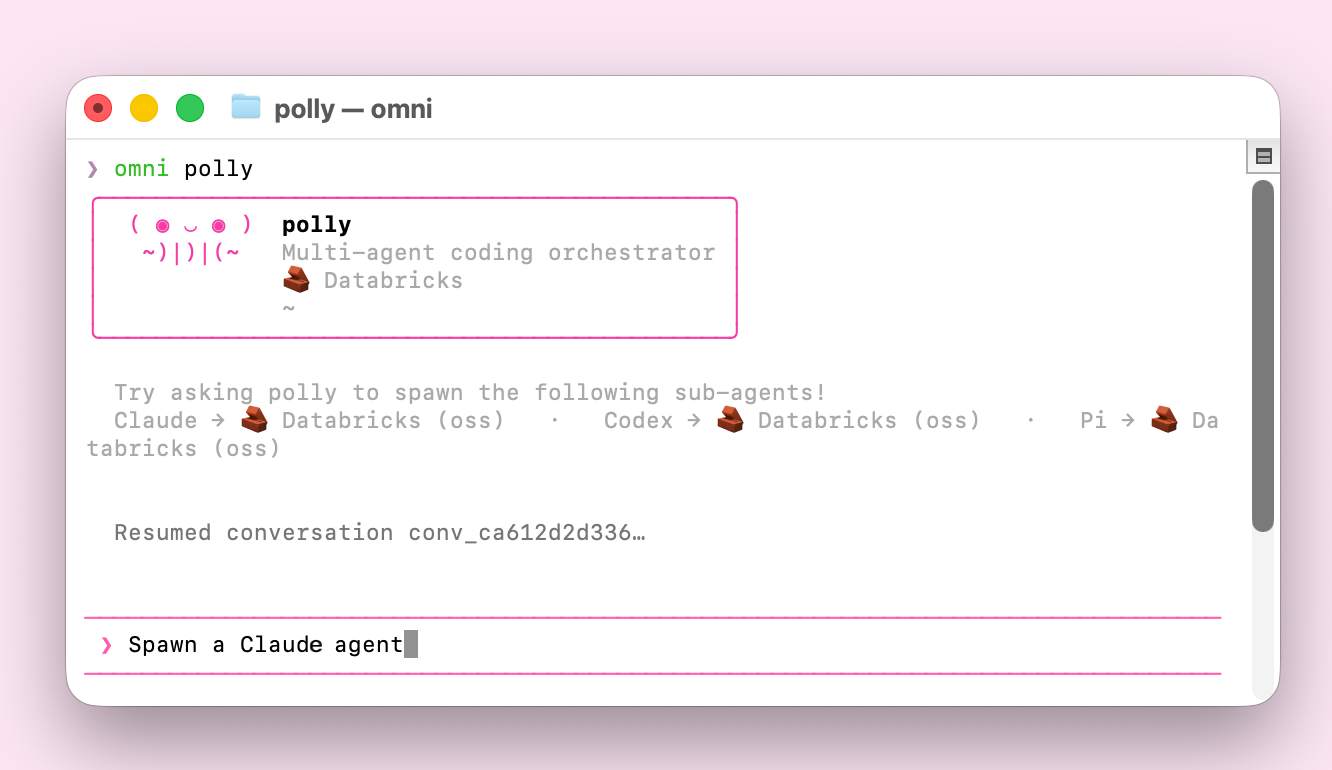
Start a session
The terminal interface requires tmux, so install it first if you don't have it:
# macOS
brew install tmux

# Debian / Ubuntu
apt install tmux
Then launch an agent:
omni claude                          # Claude Code
omni codex                           # Codex
omni goose                           # Goose (native TUI)
omni hermes                          # Hermes (native TUI)
omni run agent.yaml                  # custom omnigent
omni run ./my-agent/                 # directory with config.yaml
omni claude, omni codex, omni goose, and omni hermes launch a built-in
coding agent with Omnigent's UI. No YAML needed. See the
Coding Agent tutorial and the full harness list in
Harnesses.
omni run starts a custom omnigent from a YAML config. See
Custom Agents for how to write one.
CLI overrides
Override executor values at runtime without editing the YAML:
omni run agent.yaml --harness codex --model gpt-4.1-mini
The --harness and --model flags map directly to the executor block. This lets
you reuse the same config across different LLM backends.
From here, the agent streams its output as it thinks and acts. Tool calls run in real time, so you watch file writes, shell commands, and API calls land as they happen. The session also stays in sync with the Web UI both ways: run the agent in your terminal and glance at the browser whenever you want file diffs or inline comments.
Sessions and conversations
A session is a conversation. Every message, tool call, and file change lives in one continuous thread. Sessions are the core unit of work in Omnigent, and three properties make them useful:
- Agent-independent. A session belongs to you, not to a specific agent. Switch agents mid-conversation: start with a planner, switch to a coder, bring in a reviewer. The full history carries forward.
- Persistent. Every session has a conversation ID and lives beyond the current terminal window. Close your laptop, come back tomorrow, resume where you left off:
omni resume <conversation_id> - Shared. Any omnigent can read the history of other sessions you have access to. When you spin up a new task, the agent already has context from previous work.
When to use the terminal
The terminal shines when you want to stay close to the command line:
- Fast iteration. Keyboard-first, no context switching to a browser.
- SSH environments. Works over SSH where a browser isn't available.
- Low-bandwidth connections. Text-only, minimal overhead.
- Scripting and automation. Composable with other CLI tools.